
Quick start
Create your account, connect KDP and Amazon Ads, and get your catalogue, your sales and your first real net-profit number in about five minutes.
Five steps, about five minutes. Steps 2 and 3 bring in your whole catalogue — its sales, its Kindle Unlimited pages read, and then its ranks and reviews. Step 4 adds Amazon Ads, which is what turns royalties into profit.
1. Create your account
Sign up with any email — it does not have to be your Amazon email. You get a 14-day free trial, no credit card.
After you verify your email, the setup wizard opens automatically.
2. Install the browser extension
KDP has no public API, so royalties are read by the TrueRoyalties Connector extension, in your own browser, with your own KDP session.
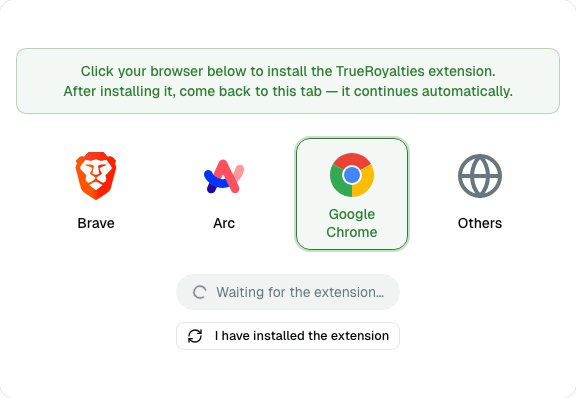
Pick your browser and install it. Chrome, Edge, Brave and Arc are supported. Come back to the tab — it continues on its own.
3. Sign in to KDP
The import needs an active KDP session, so sign in on kdp.amazon.com if you are signed out.
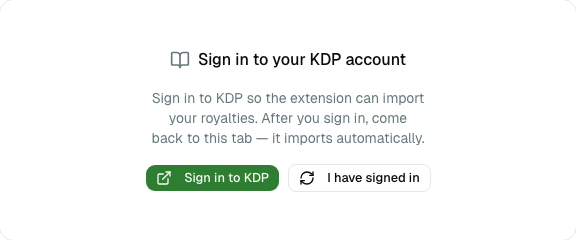
The first import then starts by itself and pulls your full history, not just today. Big catalogs take a few minutes — you can leave the tab running.
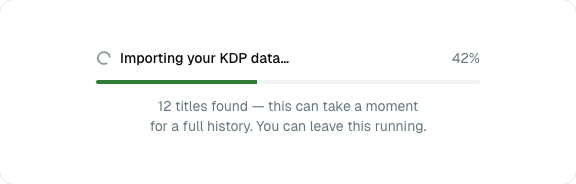
Important. One KDP account can be linked to one TrueRoyalties account, permanently. Make sure you are signed in to the right Amazon account before importing.
4. Connect Amazon Ads
This step is optional in the wizard, but without it TrueRoyalties only knows your income — not your costs.
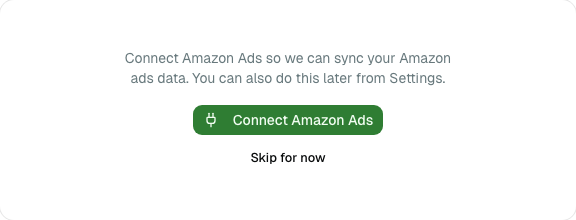
You are sent to Amazon to authorize read access, then back to the app. Ad history is backfilled automatically. See Amazon Ads.
5. Read your dashboard
You land on the dashboard with five numbers: net profit, royalties, ad spend, True ACOS and units sold.

Before trusting the figures to the cent, set your rates once in Settings → Taxes — see Taxes and currencies.
6. Then, when you want more than numbers
Neither is needed to see your profit, and both take a minute:
- Smart links — one link that sends every reader to their own Amazon store, with a QR code for the back matter of your paperback.
- Your verified page — a public page of your real figures, for proving what you earn without a screenshot.